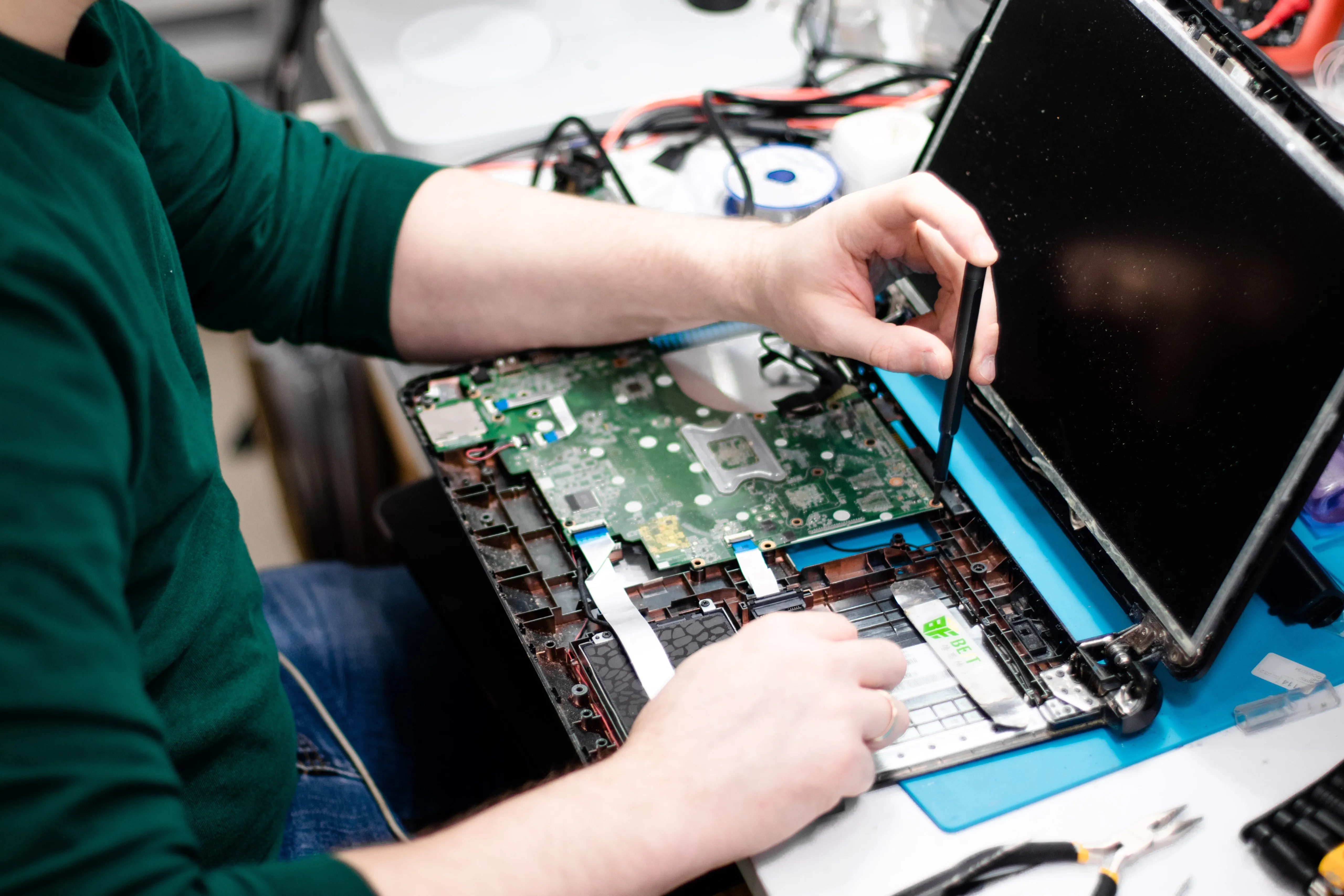
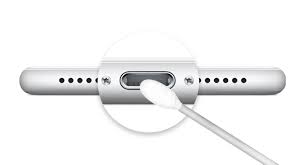
Charging port
General Problems with iPhone Charging
The charging wire cannot be inserted into the charging port.
- Don't charge your iPhone
- Charger must be angled at a specific degree in order to charge.
- The charging port has scorch marks
- scent of burning coming from the charging port
- The charging port has physical damage.
- Water damage to the port for charging
Diagnose iPhone Not Charging
It can be annoying and irritating if you're having trouble charging your iPhone. To find and maybe fix the issue, you can try a few different troubleshooting techniques. This is a comprehensive guide to assist you in troubleshooting iPhone charging issues:
- Examine the power adapter and charging cable:
Look for any indications of damage, such as frayed wires or bent connections, on the charging cord. Try utilizing a different charging cable if you experience any problems. Likewise, examine the power adapter for any obvious damage. To rule out any adaptor problems, try using an alternative power adapter, if at all possible. - Make sure the charging port is clean:
A correct connection may be impeded by the accumulation of lint, dust, and debris in the charging port over time. Use a toothpick or a clean, soft-bristled brush to carefully clear any dirt out of the charging port. To prevent any harm, make sure you do this properly. - Give your iPhone a restart:
Restarting the device can sometimes fix charging problems. Hold down the power button until the option to "slide to power off" displays. After sliding it to turn off your iPhone, press and hold the power button one more to see the Apple logo. - Try using a different power supply:
Connect your charging wire to a wall adapter or an alternate USB connection on your computer. The prior power supply might have been defective. - Try using an alternative charging cord and adapter:
Try using an alternative charging cord and adapter to determine if the problem is with your present accessories. If you have access to another pair, try using them. This will assist in identifying whether your iPhone, the adapter, or the cable are the source of the issue. - Examine any bodily harm:
Look closely for any indications of physical damage, such as bent pins or rust, on your iPhone's charging port. It is advised that you get expert assistance from an approved service center if you discover any damage. - Enter recovery or DFU mode on your iPhone:
Putting your iPhone in DFU (Device Firmware Update) or recovery mode and restoring it using iTunes or the Finder on a PC can be helpful if none of the aforementioned methods work. More complicated software-related problems that might be impairing charging can be fixed with this procedure. - Speak with Apple Support or stop by the IRepair Center:
It is suggested to get in touch with Apple Support or visit the IRepair service facility if you have attempted all of the troubleshooting methods and your iPhone is still not charging. They are qualified to identify and fix any hardware or software problems that might be the source of the issue.
Recall that the steps for troubleshooting could change based on the iOS version and model of your iPhone. It is advised to get in touch with Apple directly for support if your iPhone is still under warranty or if it is covered by AppleCare. Please be aware that these are only basic recommendations and might not address every case.